Overview
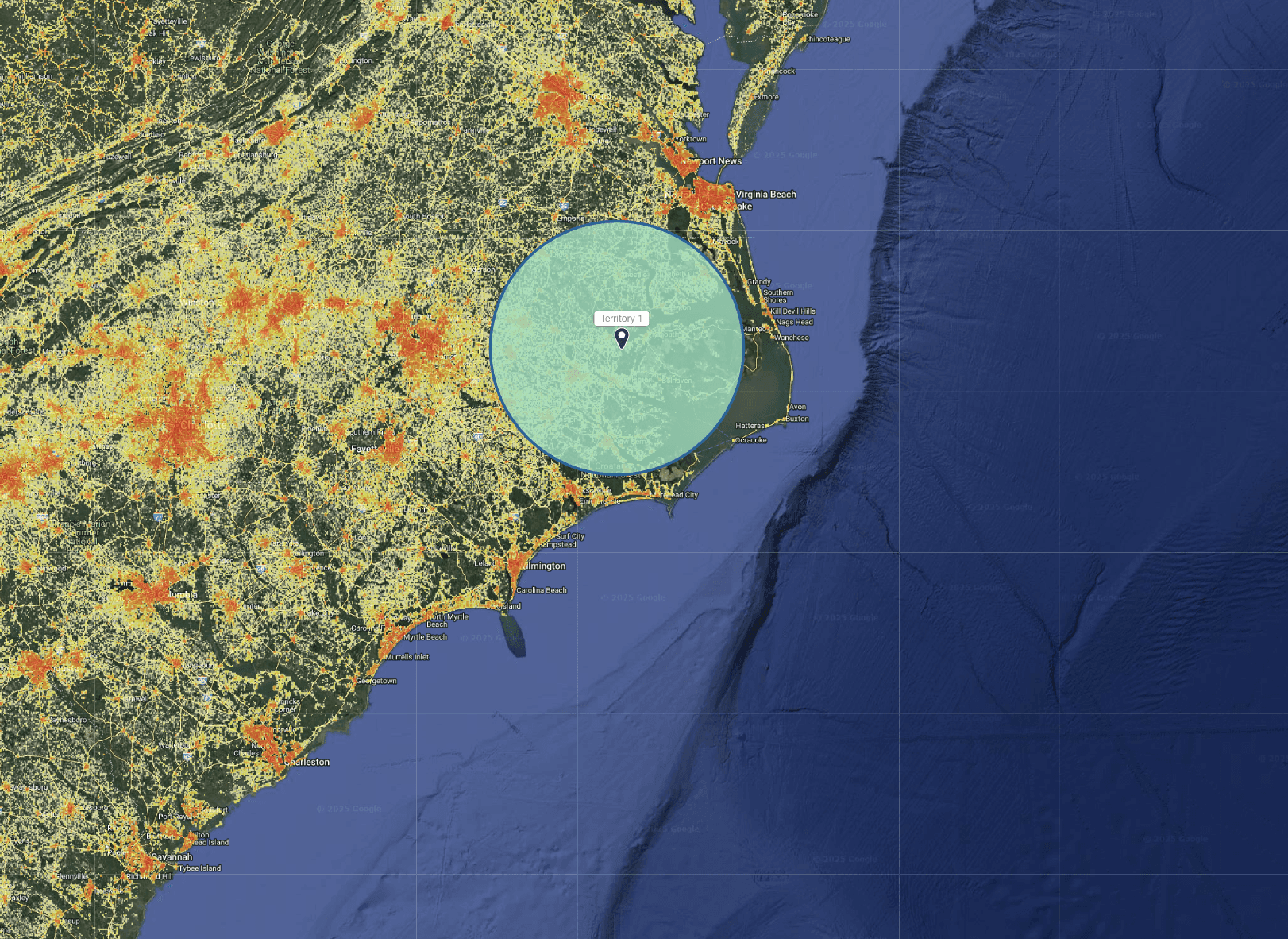
A buffer in Population Explorer (PopEx) represents a circular area around a chosen point on the map — such as a potential store site, tower, or facility. Buffers are among the most common analysis tools in PopEx, allowing you to measure population, income, and accessibility within a specified distance.
They answer one of the most fundamental spatial questions: “How many people live within X kilometers or minutes of this location?” Buffers underpin many workflows across industries — from mapping franchise trade areas to estimating telecom coverage or assessing populations served by humanitarian facilities.
Why Buffers Matter Across Workflows
Retail and Franchise Site Selection
Measure potential customers within a 5-, 10-, or 15-km/mile radius.
Compare buffer overlaps between stores to identify competition or redundancy.
Combine population results with observed POI clusters (via map search) to understand market context.
Sales Territory Mapping
Evaluate how far each sales office or depot reaches based on a fixed distance.
Adjust boundaries by comparing overlapping buffers and identifying underserved areas.
Telecom Site Planning
Quantify population within a tower’s effective range.
Use drive-time buffers to identify corridors with weak signal coverage or unserved populations.
Humanitarian and Public Sector Applications
Estimate the number of people within reach of hospitals, clinics, schools, or aid centers.
Measure accessibility gaps in rural or hazard-prone zones.
Step-by-Step: Creating a New Buffer in PopEx
Open the Buffer Tool: In the left drawer, click New → Create Item → Buffer. The cursor will change to a crosshair, prompting you to select a point on the map.
Place the Buffer Center: Click anywhere on the map to set the buffer’s center point. A dialog box will open for you to define radius and units.
Set Buffer Parameters: Enter a distance (e.g., 5 km, 10 km) or time threshold (e.g., 10 minutes drive time). Choose Distance Buffer or Drive-Time Buffer as needed and click Apply.
View and Verify: The buffer appears as a shaded polygon and is automatically added as a new Item in your active folder.
Analyze Population and Income: Select the buffer in the left drawer to view ASB results — population, density, and income within the area. Use the map’s search bar to locate POIs (e.g., stores, schools, clinics) within your buffer for context.
Rename or Adjust the Buffer: Click the buffer name in the folder list to rename it, or right-click the shape on the map and choose Edit Buffer Radius to modify size.
Export or Compare: Export results via Export → Excel or Export → KML for visualization and sharing. Create multiple buffers for comparative analysis.
Best Practices
Name buffers clearly (e.g., “5km Downtown” or “15min Catchment”).
Create tiered buffers (5, 10, and 15 minutes) to visualize primary and secondary catchments.
Use drive-time buffers in urban areas and fixed-distance buffers in rural contexts.
Use the map search bar to explore local POIs.
Export regularly to preserve analytical snapshots.
Example Applications
Sector | Use Case | Analytical Purpose |
|---|---|---|
Retail & Franchise | Site evaluation | Estimate reachable population and income. |
Sales Territories | Regional coverage | Assess accessibility and overlaps. |
Telecom Planning | Tower reach analysis | Quantify coverage population. |
Humanitarian Response | Clinic catchments | Identify populations served or excluded. |
Next Steps
Need More Help?
If you run into issues, please contact us.