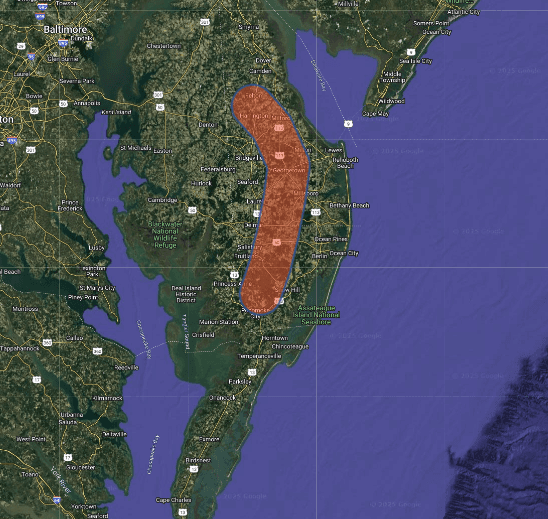
How to Create a Buffered Line in Population Explorer
Buffered lines let you measure populations and demographics along a corridor‚ such as a road, river, or proposed infrastructure route. This tool is great for studying who lives within a certain distance of a path, helping you plan transportation, utilities, or impact studies. UAV operators often use buffered lines to measure population risk along planned flight-paths.
Prerequisites
You must be logged in to your PopEx account.
Your project must include at least one folder. (All items must live inside folders.)
Line buffers are available in all plans (Starter, Pro, and Enterprise).
Steps
Open the Create Item menu (New > Create Item).
Select Line Buffer from the list of tools.
Click on the map to start drawing your line. Add points along your route.
Click the checkmark (Finish Drawing Line) to complete the path.
Enter the item details:
Name → required for all items.
Buffer distance → width in kilometers around your line.
Color → choose from the recent palette or full palette.
Click Add to save your buffered line or Cancel to discard.
Tips for Best Results
Use line buffers to study highway corridors, pipelines, or rivers.
Smaller buffer distances (e.g., 0.5-2 km) give more precise local estimates.
Larger distances (e.g., 10-20 km) are useful for regional-scale planning.
You can export buffered lines to Excel or KML to analyze population, density, and demographics along your route.
Common Issues
Symptom | Likely Cause | Fix |
|---|---|---|
Buffer not visible | Shape not inside a folder | Move to a folder; root-level items not allowed. |
Line didn't finish drawing | Did not click the checkmark | Click Finish Drawing Line to complete the path. |
Export failed | Complex geometry | Try a simpler route or shorter line length. |
Verification
The new buffered line appears under your selected folder in the left drawer.
Clicking the item zooms the map to the buffered corridor.
The population and demographic values display in the info panel.
Next Steps
Need More Help?
If you run into issues, please contact us.