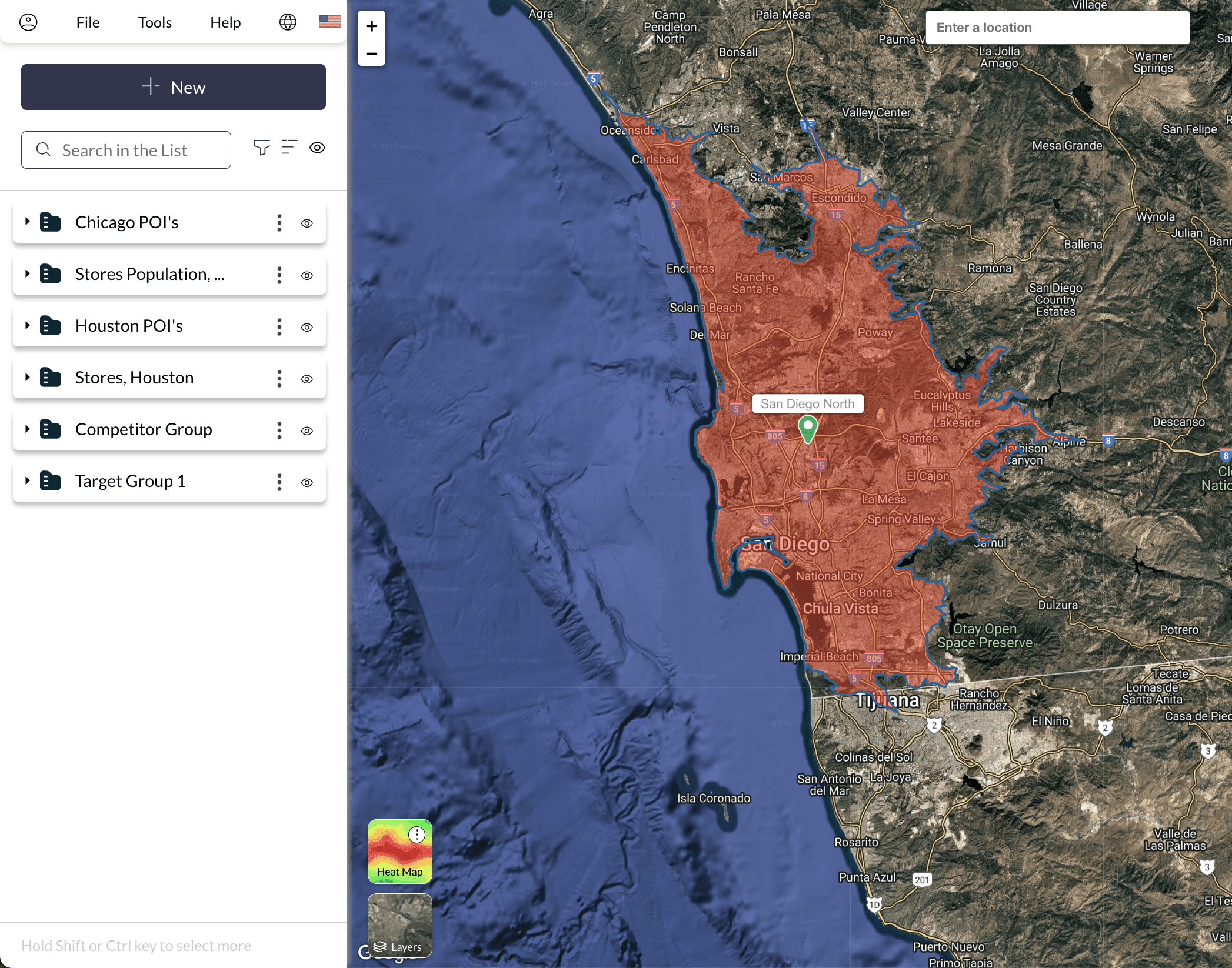
Overview
In retail site selection, accessibility often matters more than straight-line measurements when measuring the strength of your buyer base. A drive-time buffer — also known as an isochrone — captures the area reachable within a set travel time, providing a realistic view of how many customers live within a certain travel time of your candidate location.
In Population Explorer, drive-time buffers are generated using the Mapbox Isochrone API, which models real road networks and traffic conditions. These polygons can be set to custom travel-times, providing perfectly calibrated boundaries to measure population and compare candidate sites. Because drive times reflect real-world mobility patterns, they are more accurate for retail analysis than simple circular buffers.
Exporting these buffers allows you to bring Population Explorer’s data into external tools like Excel, GIS platforms, or visualization dashboards. This step ensures consistency between spatial models and business reports, enabling decision-makers to compare drive-time coverage and population reach side by side.
Drive-time exports are especially useful for optimizing franchise territories, creating balanced sales territories, and managing field teams who need reproducible, shareable geographies. Whether you're presenting a site plan to executives or preparing data for integration with CRM systems, PopEx exports provide precise, ready-to-use shapes.
Steps
1. Generate an Isochrone
Click New → Create Item → Isochrone, then select a map point and travel mode such as Driving, Walking, or Cycling.
→ Watch a quick video on creating isochrones!
2. Configure the Travel Time
Choose your desired duration (up to 60 minutes) and color, then click Add to create the drive-time buffer.
3. Export the Buffer
Select your folder, click Export → KML or Export → Excel to save the results. Use these outputs for additional analysis or to combine with other datasets.
Verification
Ensure that exported KML or Excel files include the expected travel-time geometry and associated population metrics. Verify that drive-time polygons align with site locations on the map.
Next Steps
Need More Help?
If you run into issues, please contact us.